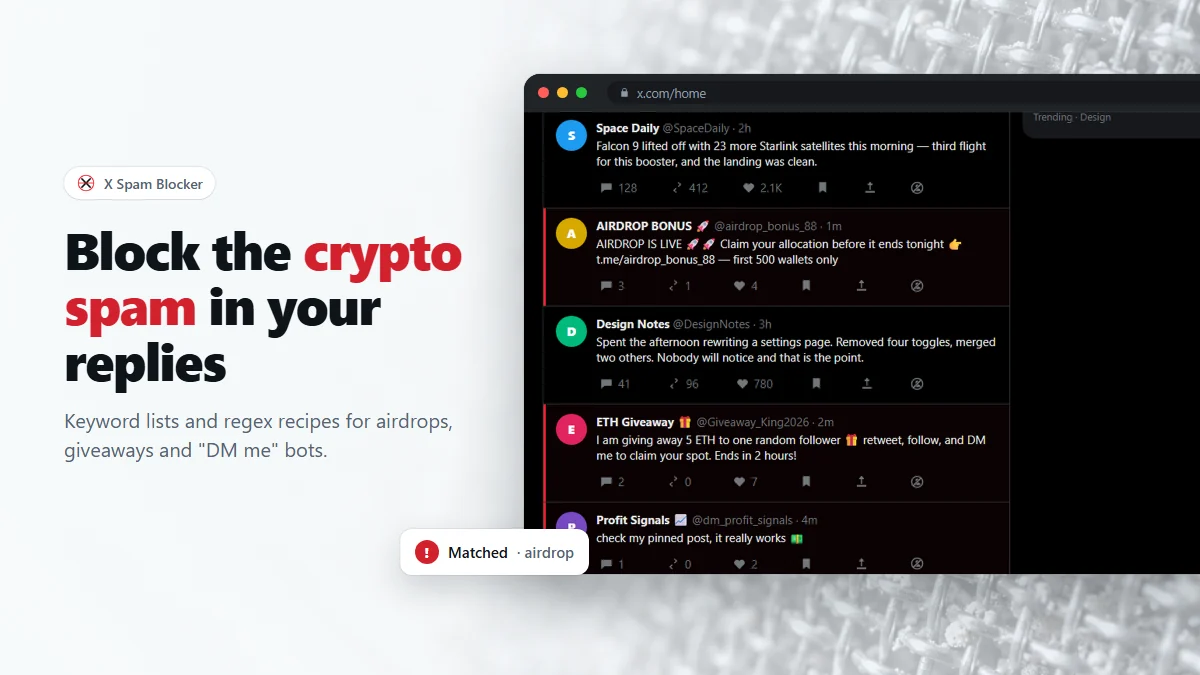
- X has no bulk block of its own — it is one account at a time, three clicks each.
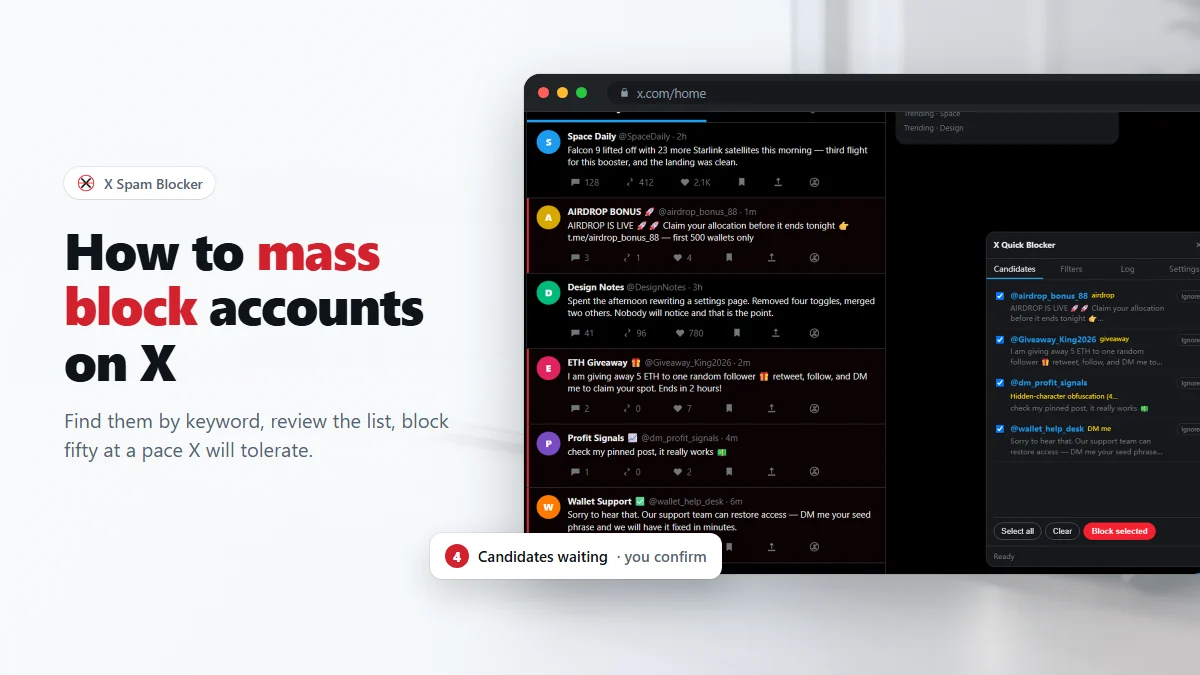
- X Spam Blocker scans the timeline you are already reading for your keywords and collects the matches in a candidate list.
- You untick the false positives, press Block selected, and it works through them one at a time.
- Keep the defaults: 1.5 s between accounts, up to 800 ms of jitter, 50 per run.
If your replies have turned into a wall of airdrop bots and "DM me" accounts, blocking them by hand is a grim job: tap ⋯, tap Block, confirm, scroll back to where you were, repeat. Forty accounts is an evening. This guide covers the whole mass-block workflow end to end — writing filters that find the right accounts, reviewing what they caught, and running the block at a pace X will tolerate.
Why X has no bulk block
X's Block is designed for the occasional, deliberate case: someone is bothering you, you block them. There is no multi-select, no "block everyone who replied with this phrase", and no way to import a list of handles. The old third-party blocklist services that once filled that gap mostly died with the paid API, which now costs real money for the kind of access they needed.
What is still available is the block action the x.com page itself performs when you click Block. A browser extension running in your own logged-in tab can call it the same way the page does, which is how a bulk block on X is possible at all without an API key. That is what X Spam Blocker does — and why pacing matters, which we come back to below.
Step 1: install it and prime it once
- Install the extension from the Chrome Web Store. It works in Chrome, Edge, Brave, Arc and Opera.
- Open x.com and sign in as usual.
- Open any user profile once. Click any handle in your timeline. This one step matters: X's internal query parameters change with every release, so the extension learns them by watching that single request instead of hard-coding them. It stores what it learned and does not need to do it again.
- A 🛡 button appears at the bottom right of the page. That is the panel, and it has four tabs: Candidates, Filters, Log and Settings.
Skip the profile visit and blocks may fail with could not resolve user_id. The page only ever shows you an @handle; the block endpoint wants a numeric account id, and that lookup is what the learned parameters are for. If you see that error, open a profile and reload.
Step 2: write your first filters
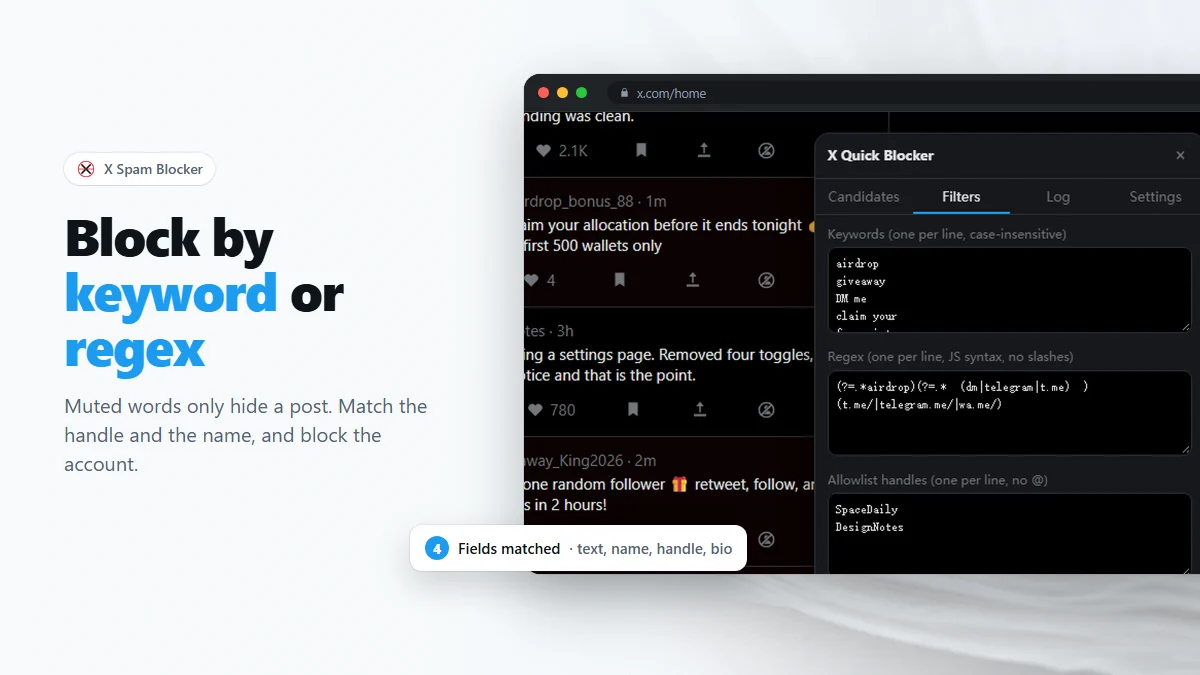
Open the panel, go to Filters, and put one keyword per line. They are plain substrings and case-insensitive, so airdrop matches Airdrop and free airdrop now. Three or four lines is enough to start:
airdrop
giveaway
DM me
claim your
The box below takes regular expressions, one per line, in JavaScript syntax and without the surrounding slashes. Use them when a single word is too blunt. And the third box is the allowlist: one handle per line, without the @. Those accounts are never flagged, whatever they post — put your friends and the accounts you actually read in there before you start.
One thing worth knowing before you write anything: in Settings you choose which fields are matched — post text, display name, handle and bio. Matching the display name and the handle is far more accurate than matching the post text, because a giveaway bot usually announces itself in its name, while the only people who write the word "airdrop" in a sentence are often the ones complaining about airdrops. There is a whole guide on this: blocking Twitter accounts by keyword or regex.
Step 3: turn on scanning and scroll
In Settings, switch on Enable keyword scanning. Then go back to browsing. The extension only looks at what is already on your screen — the posts X has rendered in your timeline, a thread, a search result or a reply section. It does not crawl, search or fetch anything on its own.
Matching posts get a red bar down their left edge, and their authors appear in the Candidates tab with the keyword or rule that flagged them. The most productive place to do this is the replies under a large account's post, which is where reply spam concentrates. Open one, scroll to the bottom a few times, and watch the candidate list fill up.
Step 4: review the list, then block
This is the step that makes the difference between a tidy timeline and a mess you have to unpick. Open Candidates and read the list. Every row shows the handle, the display name, and what matched. Then:
- Untick anything you do not want to block. Ignore removes a row from the list entirely without blocking.
- Select all is there when the list is obviously all spam.
- Press Block selected. A confirmation names how many accounts it is about to block and the gap it will leave between them.
From there it runs on its own: one account, a pause, the next. The status bar at the bottom shows how many are done, failed and left, and Stop ends the run wherever it has got to. As each block succeeds, that account's posts and replies vanish from the page you are on, which is the clearest signal that it actually worked — X does not re-render a reply section by itself, so without that step a successful block looks like nothing happened.
The pace that keeps you out of trouble
The Settings tab has three numbers that decide how aggressive a run looks from X's side:
| Setting | Default | What it does |
|---|---|---|
| Delay | 1500 ms | The wait between one block and the next. |
| Jitter | 0–800 ms | A random extra pause, so the timing is not perfectly regular. |
| Max per run | 50 | Hard stop for a single batch, however many candidates are ticked. |
Roughly 1.5 to 2.3 seconds per account is about as fast as a determined person clicking a menu, which is the point. Do not push the delay below one second. The gain is small — fifty accounts at 1.5 s takes under two minutes — and the downside is a rate limit, or worse, an account check. The panel says as much next to the fields.
What to do when you hit a 429
HTTP 429 is X telling you to slow down. When it happens, the extension does not skip the account and move on: it waits, doubling the pause each time, and retries that same account up to three times. The status bar shows the countdown and which retry it is on, and the run continues afterwards.
If you are getting 429s repeatedly, the answer is a longer delay and a smaller cap, not more retries. Stop the run, raise the delay to 2500–3000 ms, drop the cap to 20, and come back in an hour. Blocking three hundred accounts across a week is uneventful; blocking three hundred in ten minutes is the kind of thing that gets an account asked to verify itself.
Undoing a block you regret
Keyword rules misfire, and it is better to plan for that than to be careful enough to avoid it. The Log tab records every block with the account, the timestamp, the rule that matched and whether it succeeded. Press Unblock on any row and the block is reversed through the same mechanism.
When a rule turns out to be too broad, do two things: unblock the accounts it caught, and add them to the allowlist so a future run cannot catch them again. Then narrow the rule itself — usually by requiring two conditions instead of one, which the crypto spam filter recipes cover in detail.
When fully automatic is a bad idea
There is a Fully automatic switch in Settings that blocks on match with no confirmation. It ships off, and it should stay off until your filters have been through a few sessions of review without a single false positive. The half-automatic flow costs you ten seconds of reading per batch and saves you from a rule you mistyped at midnight.
One filter that is safe to leave on either way is the hidden-character rule, because it does not depend on wording at all — it flags posts that are mostly invisible padding, which is a shape spam has and ordinary posts do not. That one is worth understanding on its own: why your keyword filter misses spam.
Frequently asked questions
Can you mass block on Twitter without an extension?
Not in the app or on the website. X only offers one block at a time from the ⋯ menu, and it has no import-a-list feature. The only ways to block many accounts are to repeat the menu flow by hand, or to use a tool that drives the same block action for you.
How many accounts can I block in one run?
The default per-run cap is 50 and that is a sensible ceiling. You can raise it to 500 in Settings, but the further you go past a few dozen in one sitting, the more likely you are to hit X's rate limits. Several small runs are safer than one large one.
Does a bulk block on X notify the accounts I block?
No. X does not notify anyone that they have been blocked, whether you do it by hand or in bulk. They can find out by visiting your profile, which will tell them they are blocked.
Will the blocked accounts disappear from my replies immediately?
Yes, from the page you are looking at. The extension removes the posts and replies of each blocked account from the current page as it goes, because X does not re-render what it has already drawn. Everywhere else, they are gone on the next load.
Is there a limit on how many accounts I can block in total?
X does not publish one, and in practice accounts with tens of thousands of blocks exist. What is limited is the rate: how many block requests you make per minute. That is what the delay, jitter and per-run cap exist to control.
Block spam accounts on X in bulk, after you confirm
Free Chrome extension. No account, no server, no tracking.